DOCGetting started
The first-run wizard
What the Open Signal setup wizard asks on first launch — callsign, name, grid and email — and how the welcome-back path restores a previous installation.
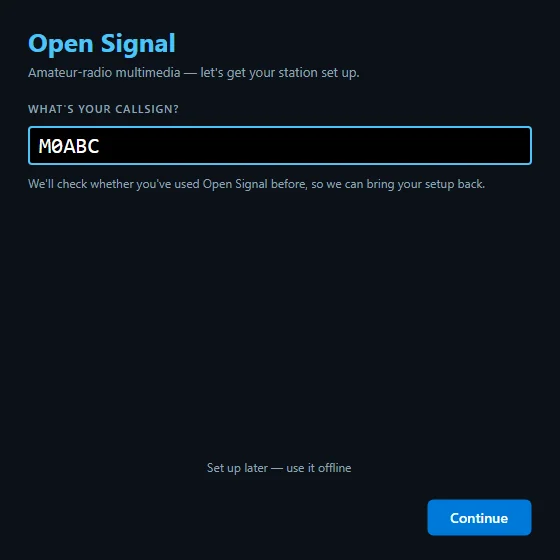
The first time Open Signal opens (no callsign configured yet), it greets you with a short setup wizard instead of dropping you into Settings.
How it flows
- Callsign — type it and continue. The app checks with the service whether it already knows you.
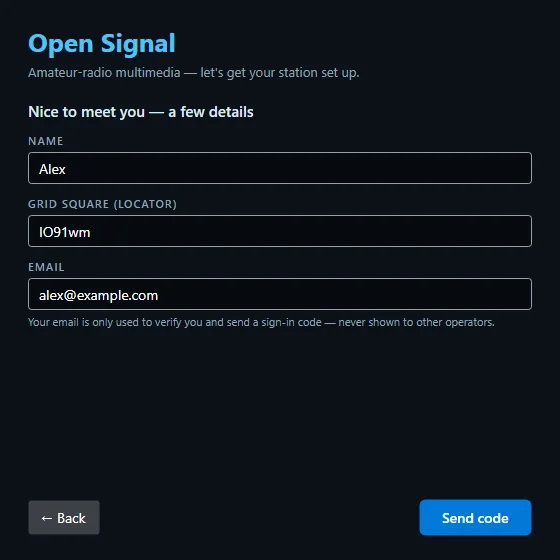
- New here? You’re asked for your name, grid square and email — the essentials. Radio hardware (sound card, PTT) is not part of the wizard; you set that up afterwards in Settings, at your own pace.
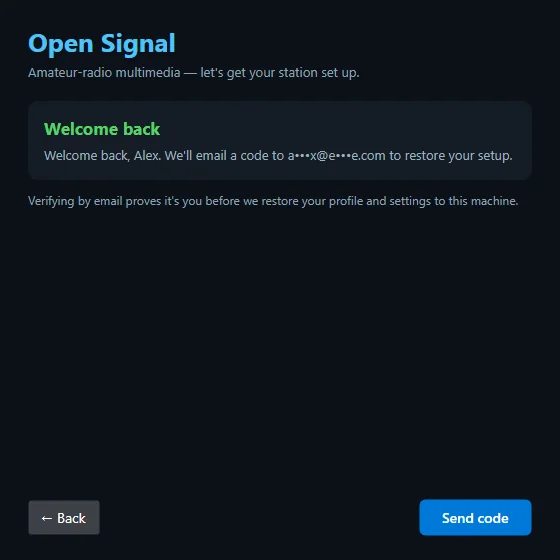
- Been here before? If the service recognises your callsign, you get a “welcome back” instead — it can restore your profile and settings from your previous installation. See Sign in and restore.
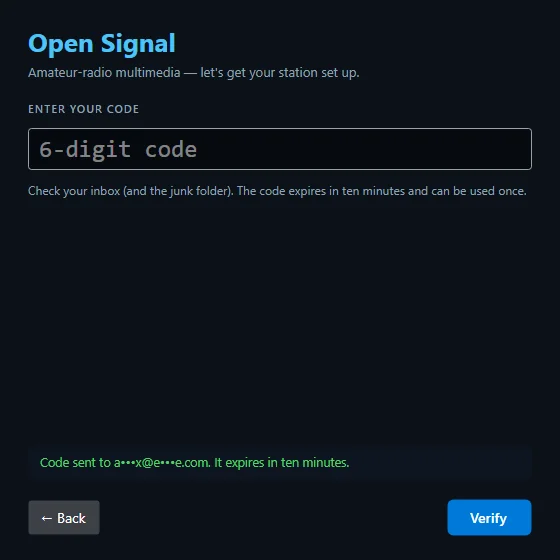
- Verify — a six-digit code is emailed to you; type it in.
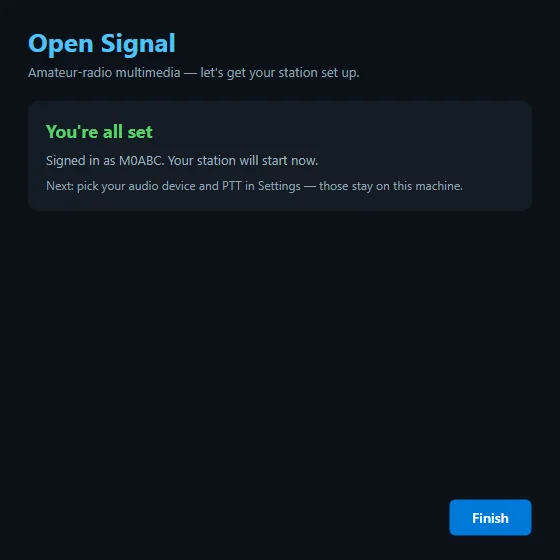
- Done — the app starts with your details in place.
Offline?
Every step is skippable. Choose to continue offline and the app runs with just a callsign — the radio side never needs the internet. You can sign in later from Settings.
New to Open Signal?
Start with the overview — what it does, the honest status, and how the pieces fit together.