DOCReceiving
The Receive screen, a tour
A guided tour of the Open Signal Receive screen: readout tiles, the latest picture pane, the heard list, the waterfall and the always-present composer.
Receive is home. Incoming SSTV is detected automatically — no tuning knob, no mode guessing — and pictures paint in as they decode.
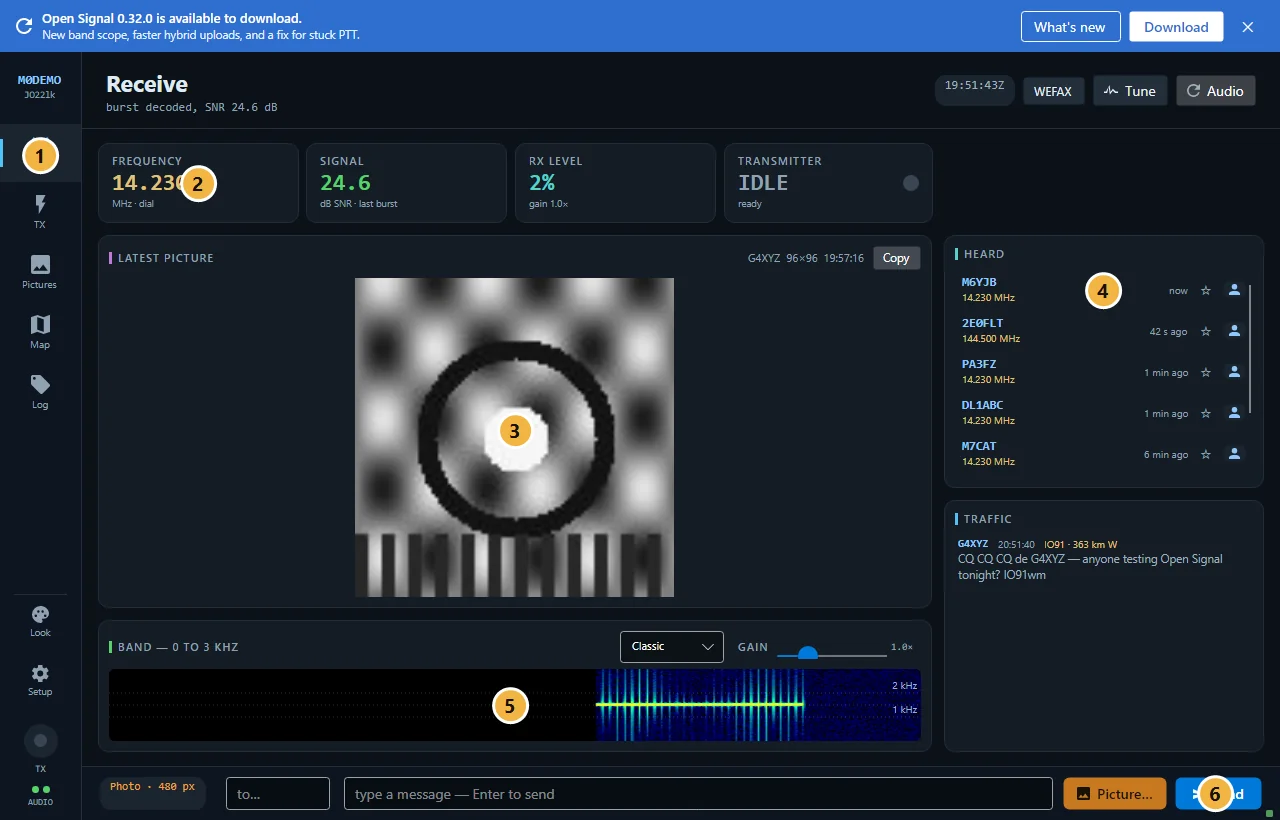
- The rail — switch between Receive, Transmit, Pictures, Map and Log. The bottom of the rail holds Look (personalisation), Setup, and the health chips: TX state and the two audio-direction dots.
- Readout tiles — dial frequency (live from CAT when connected), signal SNR of the last decoded burst, RX level with your gain, and transmitter state.
- Latest picture — the most recent arrival, full size. While something is coming in, this pane switches to the live decode, painting line by line, with a progress percentage. Click the picture to view it full-screen; the Copy button above it puts it on the clipboard as a file.
- Heard list — stations heard over RF and seen via the service, newest first, with their frequency. The star follows a station (alerts when they come on air); the person icon opens their profile.
- The band — a 0–3 kHz waterfall of what the radio hears. Pick a different palette with the dropdown; the GAIN slider adjusts your receive level.
- The composer — text and pictures go from here on every screen, so you can answer without switching away.
to…empty = calling CQ.
Also on this screen
- WEFAX arms HF weather-fax receive.
- Tune keys a steady 1750 Hz tone for setting your ATU or drive level.
- Audio restarts both audio streams — first aid for a soundcard the RF has wedged.
New to Open Signal?
Start with the overview — what it does, the honest status, and how the pieces fit together.